
In previous articles, we detailed our step by step guide to extract your data automatically from Gmail and how to send Gmail emails from parsed data using Zapier.
Exporting Gmail emails to Google Sheets doesn’t have to be slow or error-prone. This guide shows how to turn your inbox into a live, structured database, automatically extracting key details and syncing in real time for faster, more accurate workflows.
Key Takeaways:
- There are multiple ways to export Gmail emails to Google Sheets, but most are fragile or messy.
- Clean, structured data (separate columns, no duplicates) is the real challenge, not automation.
- AI-powered parsers like Parseur solve this by extracting and exporting data automatically in real time.
The Google Apps Script Trap
You’ve probably been here before. You looked for a Google Apps Script to export Gmail emails to Google Sheets. It worked for a while, until it broke, hit Gmail’s rate limits, or stopped handling new email formats.
Consider a common use case: an e-commerce business receiving dozens of order confirmation emails every day. Each message contains essential details like customer names, delivery addresses, phone numbers, ordered items, and prices. That information needs to reach the delivery team quickly and accurately to ensure orders are processed efficiently and customers are satisfied.
A shared Google Sheet is the simplest way to do this, but manually extracting data from emails and pasting it into a spreadsheet is slow, error-prone, and doesn’t scale. And contrary to popular belief, you don’t need a developer to fix that.
With Parseur, you can set up an automated workflow for this process. Parseur is a powerful email parsing tool that will automate the data extraction from emails and export parsed data to your spreadsheet as well. Parseur is a visual email parsing tool where you don't need to create any parsing rules for the texts that you want to extract.
Why Export Gmail Emails to Google Sheets?
Let’s take a common example: an e-commerce business receiving dozens of order confirmation emails every day.
Each email contains critical information:
- Customer name
- Address
- Phone number
- Items ordered
- Prices
That information needs to reach the delivery or operations team quickly and accurately. A shared Google Sheet is perfect for this, but manually copying data from emails is slow, error-prone, and doesn’t scale.
That’s where automation comes in.
3 Ways to Export Gmail Emails to Google Sheets
There are several ways to move data from Gmail to Google Sheets, but they don’t all produce the same results. Here’s how the three most common methods compare:
| Method | How It Works | Pros | Cons | Best For |
|---|---|---|---|---|
| Google Apps Script | Custom scripts pull email content and write it to Sheets | Free, flexible | Requires coding, breaks when email formats change, Gmail rate limits, and is hard to maintain | Developers or one-off experiments |
| Zapier / Make (Raw Email) | Sends the full email body into Google Sheets | Easy to set up, no code | Entire email dumped into one cell, manual cleanup needed, poor attachment handling | Simple alerts or logs |
| AI OCR | AI extracts specific fields and exports them to columns | Structured data, real-time sync, handles PDFs & attachments, no rules needed | Requires a parsing tool | Operational workflows, reporting, scaling teams |
Why structured data matters?
If you need values like Invoice #, Date, Customer Name, or Total Amount in separate columns, only an AI-powered parsing approach can deliver that automatically. Scripts and raw integrations move text—but structured workflows require structured data.
How to Export Gmail Emails to Google Sheets
Step 1: Automatically forward the right emails
Start by deciding which emails you want to extract data from.
Instead of forwarding your entire inbox, Gmail allows you to create simple filters that automatically forward only relevant emails, such as Order Confirmations, Invoices, or Booking Requests, to your Parseur mailbox.
You can forward emails that:
- Contain keywords like “Order confirmed.”
- Come from a specific sender
- Include PDF attachments
This ensures only useful emails are processed and keeps your spreadsheet clean.
Step 2: Let Parseur’s AI extract the data automatically
Once emails arrive in Parseur, the AI handles the rest.
Parseur uses zero-setup AI extraction to automatically detect and capture structured data such as:
- Order numbers
- Customer names and addresses
- Totals and prices
- Dates
No manual rules, templates, or training required.
Step 3: Export data to Google Sheets in real time
As soon as an email is processed, the extracted data can be sent to Google Sheets instantly via Parseur’s native integration.
Each email creates a new row, with fields like Order ID, Customer Name, and Total neatly organized into separate columns, making the data easy to share or use in downstream workflows.
This real-time export is ideal for:
- Order fulfillment
- Delivery coordination
- Reporting and tracking

Export data using Google Sheets formulas
For bulk or historical exports, Parseur also provides Google Sheets formulas directly within your mailbox.
With a single click, you can generate a spreadsheet and pull in parsed data automatically. You can also refine how data is displayed, especially when working with PDF attachments containing tables or line items.

Using Zapier to send your data to Google Sheets
By using the formula above, the data will be refreshed every hour or so.
If you need the parsed data adeed to your spreadsheet in real time, you can do so using Zapier. Zapier is a cloud automation tool that connects applications together to automate repetitive tasks.
In your Parseur mailbox, search for "google sheets" under Zapier.

When clicking on "create zap", you will be redirected to Zapier where you can sign in to your account or create a new one.
You will have to connect your Parseur account with Zapier and select the mailbox where the template has been created for the data extraction.

Zapier will launch a trigger to retrieve the parsed email data.

Each time a new email is processed by Parseur, it will create a new Google sheets row.
You will have to sign in to your Google account and choose the Google drive so that you can customize the data fields using the parsed data from Parseur.
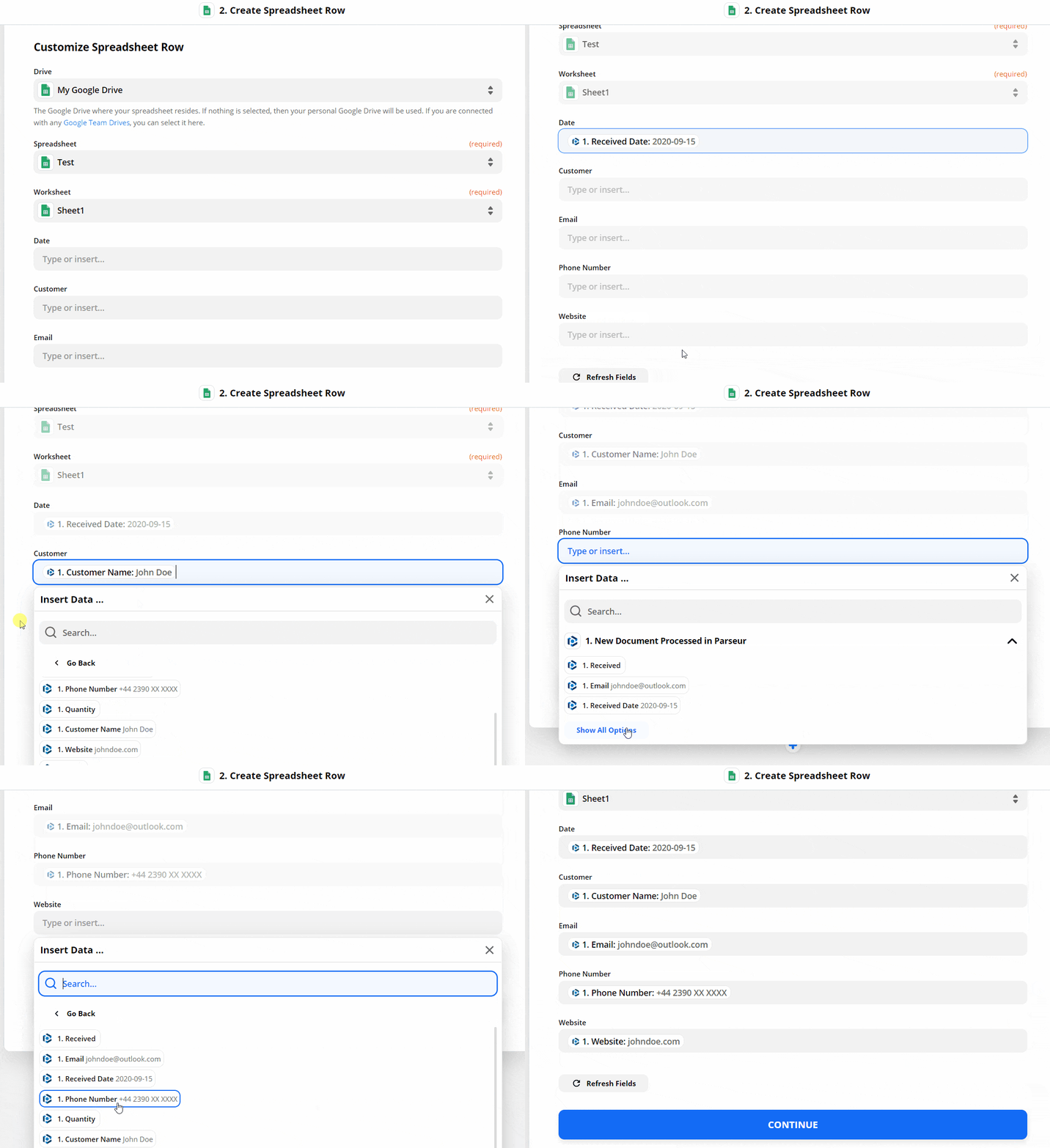
You can send a test from Zapier to check if everything is okay.


Turn the Zap on once you are satisfied with the test trigger!
Every email that you send to your Parseur mailbox will be automatically processed and exported to the Google spreadsheet in real-time.
For more information check out our support article about setting up your Zapier integration.
Technical Deep Dive: Handling Email Attachments
The hidden challenge with email automation
Extracting data from email bodies is one thing. Handling attachments, especially PDFs, is where many automation tools fall short.
Most approaches force you to choose:
- Either extract data without saving the attachment, or
- Save the file without linking it back to the structured data
This creates gaps in your workflow and makes it harder to audit orders, invoices, or delivery documents later.
How Parseur handles attachments end-to-end
Parseur processes email attachments within the same workflow.
When a PDF or document is attached to an email:
- The AI extracts structured data from the attachment
- The original file is saved to Google Drive
- A direct link to the file is added to the corresponding row in Google Sheets
This means each spreadsheet row contains both:
- The extracted data (order number, total, date, etc.)
- A clickable link to the original document for reference
The result is a fully traceable, audit-ready dataset, without manual uploads or file matching.
Why this matters for real-world workflows
This approach is especially useful for:
- Invoices and receipts
- Order confirmations with PDFs
- Shipping documents
- Contracts and signed forms
Your team gets structured data and instant access to the source file, all in one place.
Getting Started (Without Overthinking It)
Automating Gmail to Google Sheets doesn’t require custom scripts, complex workflows, or trained AI models.
The process is simple:
- Forward the right emails
- Let AI extract the data
- Sync everything to Google Sheets in real time
From there, the system scales naturally. Whether you’re automating a small inbox or handling complex documents with attachments, Parseur fits into your existing tools and grows with your workflow, without adding technical overhead.
Last updated on

